D.O RFID TAG company is a RFID card manufacturers & factory, professional RFID card manufacturers , NFC tags suppliers and RFID Wristband company in shenzhen china for 15 years — Source Quality Products and Enjoy Efficient Service.
NFC Tag on iPhone, use NFC tags on iPhone, program NFC tags on iPhone, iPhone compatible NFC tags
If you’re an iPhone user wondering how to unlock the power of NFC technology, NFC Tag on iPhone functionality (available on iPhone 7 and later) lets you tap, encode, and interact with NFC tags for smart home automation, contactless sharing, and more. Unlike Android, iPhones have specific requirements for NFC tag compatibility and programming apps—but once you understand the basics, using NFC tags becomes a seamless part of your daily routine. This guide breaks down everything you need to know: compatible iPhone models, step-by-step encoding instructions, top app recommendations, and the best NFC tags to use with your iPhone.
Not all iPhones work with NFC tags—Apple introduced full NFC read/write functionality in 2017, with ongoing improvements in later models. Here’s the complete compatibility breakdown for 2025:
Fully Supported (Read + Write + Automation): iPhone 15/15 Pro/15 Pro Max, iPhone 14/14 Pro/14 Pro Max, iPhone 13/13 Pro/13 Pro Max, iPhone 12/12 Pro/12 Pro Max, iPhone 11/11 Pro/11 Pro Max, iPhone XS/XS Max, iPhone XR, iPhone X, iPhone 8/8 Plus, iPhone 7/7 Plus (requires iOS 13 or later).
Limited Support (Only Read): iPhone SE (1st generation, 2016)—can read NFC tags but cannot write or program them.
No Support: iPhones older than iPhone 7 (e.g., iPhone 6, iPhone 5)—lack NFC hardware.
Key Note: For automation (e.g., “tap to turn on lights”), your iPhone needs iOS 13 or later and the Shortcuts app (pre-installed on iOS 13+). If you’re using an iPhone 7 with iOS 12, you can read tags but not create automated actions.
Programming NFC Tag on iPhone is straightforward with the right app—follow these steps to encode data (URLs, text, shortcuts) onto any compatible NFC tag:
Not all NFC tags work with iPhones—stick to these chip types for reliable performance:
NTAG213/NTAG215/NTAG216: The most iPhone-friendly chips (made by NXP) — support all iPhone models and allow 100,000+ rewrites. NTAG215 is the sweet spot (504 bytes storage) for most uses—see our NTAG215-NFC-tags page for details.
Avoid: MIFARE Classic tags (some iPhones can’t write to them) or proprietary chips (only work with specific apps). For a comparison of NTAG vs. MIFARE, check our ntag215-vs-Mifare page.
Pro Tip: Buy tags labeled “iPhone-compatible” (most retailers note this) to avoid compatibility issues—samples cost \(0.50–\)1.00 per unit for testing.
iPhones don’t have built-in NFC writing tools—use these free, trusted apps:
NFC Tools (Top Choice):
Features: Read/write text, URLs, contacts, and shortcuts; supports all iPhone-compatible NFC tags; includes a “Lock Tag” option to prevent accidental overwriting.
Cost: Free (with in-app purchases for advanced features, not needed for basic use).
Shortcuts (Apple’s Built-In App):
Features: Create automated actions (e.g., “tap to open Spotify” or “tap to set Do Not Disturb”) and link them to NFC tags—no extra app needed.
Limitation: Can only program shortcuts (not text or URLs) — best for smart home users.
TagWriter by NXP:
Features: Similar to NFC Tools, with a focus on NXP chips (NTAG213/215/216); includes a “Tag Info” tool to verify chip type.
Cost: Free.
Follow these steps to encode a URL (a common use case) onto an NFC tag with your iPhone:
Open the NFC Tools app → Tap “Write” at the bottom of the screen.
Tap “Add a Record” → Select “URL” from the list of record types.
Enter your desired URL (e.g., “https://yourfavoritesite.com”) → Tap “OK” to save.
Tap “Write” in the top-right corner → Hold your iPhone’s top edge (where the NFC antenna is located) against the NFC tag.
Wait for the “Write Successful” message (takes 2–3 seconds) — do not move your phone during this process.
Close the NFC Tools app → Hold your iPhone’s top edge against the tag again.
If you encoded a URL, your iPhone will automatically open Safari and load the link (no app needed).
If you encoded a shortcut (via the Shortcuts app), the shortcut will run immediately (e.g., turn on your smart lights).
Now that you know how to program tags, here are 5 practical ways to use NFC Tag on iPhone in daily life:
Use Case: Stick an NFC tag by your front door—tap to “set Home Mode” (lock doors, turn on lights, adjust thermostat).
How to Set Up:
Open the Shortcuts app → Tap “+” to create a new shortcut.
Add actions (e.g., “Lock Front Door” via your smart lock app, “Turn On Living Room Lights” via your smart bulb app).
Save the shortcut as “Home Mode” → Open NFC Tools → Link the shortcut to an NFC tag.
Use Case: Encode your contact info (name, phone, email, LinkedIn) onto an NFC tag—tap to share with colleagues instead of handing out paper cards.
How to Set Up:
In NFC Tools, tap “Add a Record” → Select “Contact” → Enter your details.
Program the tag → When someone taps it with their iPhone/Android, your contact info will save to their phone.
Use Case: Stick an NFC tag on your car dashboard—tap to play your favorite playlist (Spotify/Apple Music) or podcast.
How to Set Up:
Create a shortcut in the Shortcuts app that opens your playlist.
Link the shortcut to an NFC tag → Tap the tag when you get in the car to start listening.
Use Case: Encode your hotel Wi-Fi info (SSID + password) onto an NFC tag—tap to connect without typing.
How to Set Up:
In NFC Tools, tap “Add a Record” → Select “Wi-Fi” → Enter the SSID, password, and security type (WPA2).
Program the tag → Tap it with your iPhone to connect to Wi-Fi instantly.
Use Case: Stick an NFC tag on your desk—tap to “set Work Mode” (open Slack, Google Docs, and your calendar).
How to Set Up:
Create a shortcut with actions to open your work apps.
Link the shortcut to an NFC tag → Tap it when you start work to save time.
To ensure smooth performance with your iPhone, choose these NFC tags—they’re tested for compatibility and durability:
Why It’s Great: 504 bytes of storage (enough for URLs, shortcuts, or contact info); supports 100,000+ rewrites; works with all iPhone models (7+).
Where to Buy: Amazon (100-pack for \(15–\)20), or our NTAG215-NFC-tags page for bulk orders.
Best For: General use (smart home, sharing, media control).
Why It’s Great: If you want to stick a tag on a metal surface (e.g., car dashboard, metal desk), these tags have a special layer to avoid signal interference (iPhones struggle to read standard tags on metal).
Where to Buy: Our ntag215-nfc-tags-anti-metal page (50-pack for \(25–\)30).
Best For: Car use, metal furniture.
Why It’s Great: Cheaper than NTAG215 (100-pack for \(10–\)15); 144 bytes of storage (enough for simple URLs or shortcuts); ideal for one-time use.
Where to Buy: Etsy, Adafruit.
Best For: Testing NFC use cases or small-batch needs (e.g., party favors).
Why It’s Great: Add your logo, name, or design to the tag (full-color printing); still compatible with iPhones.
Where to Buy: Alibaba (bulk custom orders), Etsy (small-batch printed tags).
Best For: Business cards, gift tags, or personalized smart home labels.
“Do I need an app to read NFC tags on iPhone?” No—for basic content (URLs, contacts), your iPhone will read the tag automatically when you tap it (no app needed). For shortcuts or advanced data, you’ll need the Shortcuts or NFC Tools app.
“Can I lock an NFC tag after programming it on iPhone?” Yes—use the “Lock Tag” feature in NFC Tools. Once locked, the tag becomes read-only (prevents accidental overwriting), but you can’t unlock it later.
“Why won’t my iPhone read an NFC tag?” Common fixes:
Ensure your iPhone is iPhone 7 or later with iOS 13+.
Hold the iPhone’s top edge (not the back) against the tag—this is where the NFC antenna is located.
Check if the tag is compatible (use NTAG213/215/216, not MIFARE Classic).
“Can I use NFC tags on iPhone to make payments?” No—iPhone uses Apple Pay for contactless payments, which is separate from NFC tag functionality. You can’t program an NFC tag to act as a payment card.
Avian Monitoring RFID Microchip for Bird Tracking
More >>
Herpetology Research PIT Tag for Reptiles and Amphibians
More >>
Laboratory Rodent Identification RFID Microchip
More >>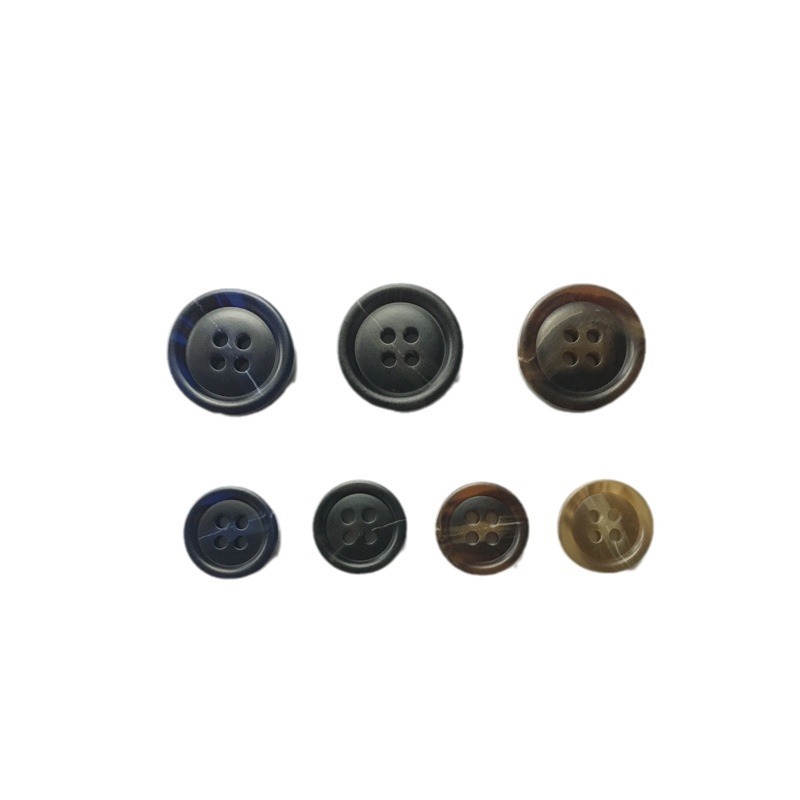
Durable NFC Button Tag with NTAG213 215 216. Ideal for access control, checkpoints, maintenance tracking, and authentication systems.
More >>
379.png)